This is the client sample which can launch C-WaveformGenerator.
Please prepare the following steps before you use C-Waveformgenerator.
(1) Make sure you can output the signal from
your device with your settings. (Device settings/Channel settings)
(2) Please save your setting files to your local storage drive after you
confirm to work C-WaveformGenerator properly.
Please refer "Waveform setting sample for Multiple Channel" sample if you don't have any configuration file (ini) for C-WaveformGenerator.
Specification of sample program |
|
Name of sample program |
FileOperation.py |
Related files |
CommonFunction.py |
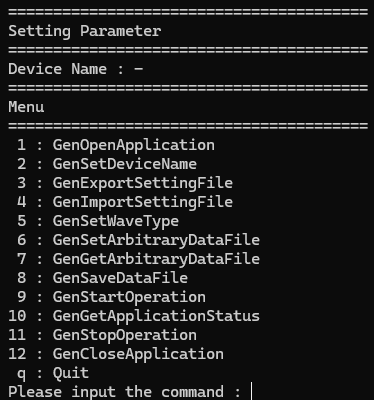
1. When you enter the sample program name
and execute the program, the CUI (Character User Interface) menu appears
as shown above.
The appearance may differ depending on the software version.
Example of program execution: py FileOperation.py
2. Initialization
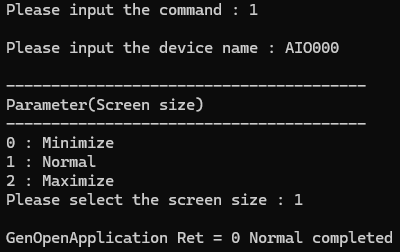
- You can specify the device name by
selecting the [1: GenOpenApplication] command from the CUI menu.
After you specify the device name, the Parameters (Screen Size)
CUI menu appears.
You can indicate the size
of window at launching C-WaveformGenerator. (Minimize, Normal, Maximize)
- C-WaveformGenerator may launch when
[GenOpenApplication] command completes successfully.
You may not install C-WaveformGenerator properly if C-WaveformGenerator
doesn't launch.
Please Un-install
C-WaveformGenerator and then install
it, again.
- You can modify "Device name" by selecting the [2: GenSetDeviceName] command from CUI menu.
3. Indicate the Setting file
- You can indicate the Setting file which saved on C-WaveformGenerator when select [4: GenImportSettingFile] command from the CUI menu.
When you specify the setting
file name, GenImportSettingFile is executed, and the CUI menu is displayed
again.
The contents of the setting file are read and applied to the
C-WaveformGenerator.

4. Operation
- You can start to generate from the
specified device when you select [9: Gen StartOperation] command from
the CUI menu.

- You can stop to generate from
the specified device when you select [11: GenStopOperation] command from
CUI menu.
The appearance of C-WaveformGenerator will follow your
operation in [GenStartOperation/GenStopOperation] on the sample program.
Please refer "Screen
configuration" to know more detail of C-WaveformGenerator.

- You can see the current status of
C-WaveformGenerator when you select [10: GenGetApplicationStatus] command
from CUI menu.
You can confirm the current status even if the window size
of C-WaveformGenerator is "Minimum".

5. Exit
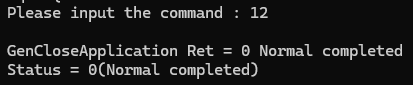
- You can terminate C-WaveformGenerator
when you select [12: GenCloseApplication] command from CUI menu.
In this case, you can operate C-WaveformGenerator by
the other our client application with GenOpenApplication function.
- Please select [1: GenOpenApplication] command if you want to operate C-WaveformGenerator, again.
6. Close
- You can close this sample program
when you select [q: Quit] command from CUI menu.
C-WaveformGenerator may be also terminated.
In this sample program, you can use [3: GenImportSettingFile] command to load the settings file previously set on the C-WaveformGenerator.
In addition to this function,
you can also make fine adjustments to channel settings and data file settings.
In addition, you can save the settings to a specified settings
file name by selecting the [3: GenExport SettingFile] command after making
fine adjustments using this sample program.
For details on channel settings, refer to "Channel Settings" in [Operation panel] of C-WaveformGenerator.
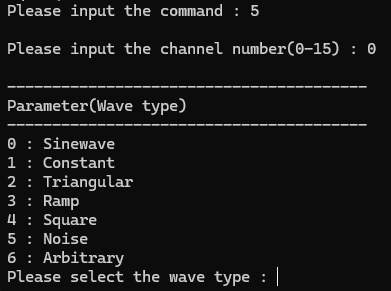
To set the data file, select
the [5: GenSetWaveType] command, specify the channel number, and select
the [6: Arbitrary] command.
For details on arbitrary waveforms, refer to "Arbitrary"
waveform in [Waveform
selection panel] of C-WaveformGenerator control panel.