This is the client sample which can launch
C-WaveformGenerator.
Contec recommends to refer this sample in the beginning to learn C-WaveformGenerator
SDK.
This sample program can not only launch C-WaveformGenerator
but also it can start/stop to waveform generating.
And also, you can modify the device settings as well as the channel settings
while stopping the waveform generating.
In advance, you must install your device
on your Windows OS.
You can use C-WaveformGenerator even you install "AIO Demo Device"
on your Windows OS if you don't have any supported
devices.
Please refer "Home > Construction of Driver Environment > Installing
Device Driver > Demo Device" on API-AIO(WDM) Help to know the
way to install "AIO Demo Device".
Please refer "File sample" if you already have the configuration file (ini) for C-WaveformGenerator.
Specification of sample program |
|
Name of sample program |
MultiChannelWave.py |
Related files |
ChannelSetting.py |
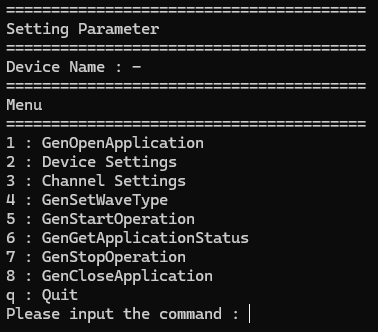
1. When you enter the sample program name
and execute the program, the CUI (Character User Interface) menu appears
as shown above.
The appearance may differ depending on the software version.
Example of program execution: py MultiChannelWave.py
2. Initialization
- You can specify the device name by
selecting the command [1: GenOpenApplication] from the CUI menu.
After you specify the device name, the Parameters (Screen Size)
CUI menu appears.
You can indicate the size
of window at launching C-WaveformGenerator. (Minimize, Normal, Maximize)
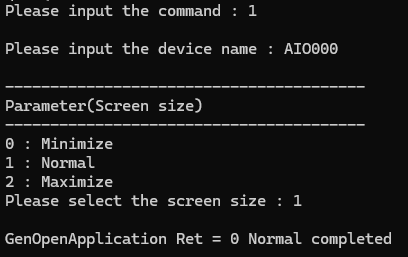
- C-WaveformGenerator may launch when
[GenOpenApplication] command completes successfully.
You may not install C-WaveformGenerator properly if C-WaveformGenerator
doesn't launch.
Please Un-install
C-WaveformGenerator and then install
it, again.
3. Device settings
- You can see "Top > Device
Settings" by selecting the [2: Device Settings] command from CUI
menu.
And you can modify the channel number as well as frequency
on it.
Please refer "Device
settings" topic in Operation
panel to know more about these settings.
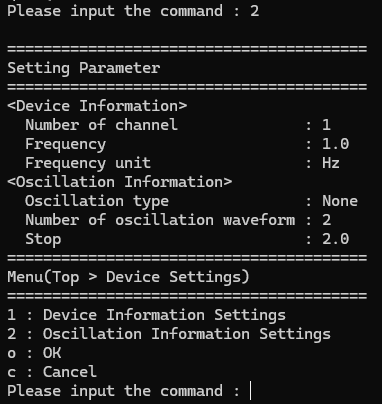
- You don't have to modify the device
settings when you only confirm the behavior of sample program.
You can be back CUI menu without any reflect the parameter
when you select [c: cancel] command on it.
4. Channel settings
- You can see "Top > Channel
setting" menu by selecting the [3: Channel Settings] command from
CUI menu.
You can configure "Channel Information Settings"
as well as "Sweep Settings" for the target channel number.
Please refer "Channel
settings" topic in Operation
panel to know more about these settings.
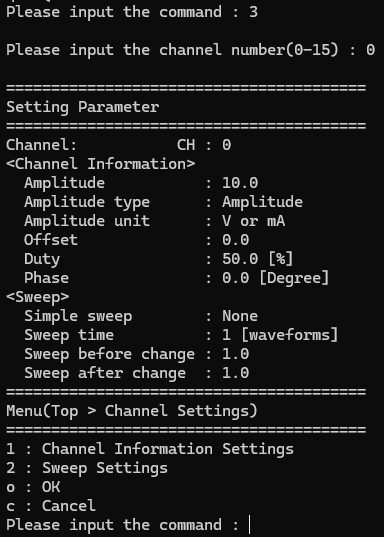
- You don't have to modify them if
you just confirm the behavior of the sample program.
Please select [c: Cancel] command to ignore all your
modifications on Channel settings.
- You cannot change the output waveforms
for all channels at once.
If you want to change the output waveforms for multiple channels,
set [Channel] for each channel.
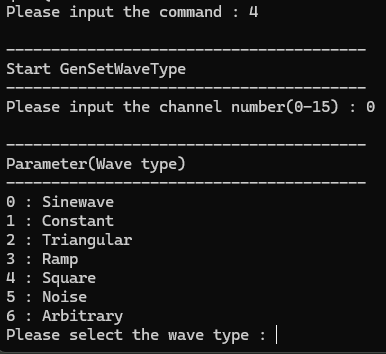
- You can see "Wave Type"
menu by selecting the [4: GenSetWaveType] command from CUI menu.
Please select "Wave type" for the target channel
number.
The wave type is reflected to C-WaveformGenerator and the CUI
menu is displayed again after you select "Wave type".
5. Operation
- You can start to generate when you
select [5: GenStartOperation] command from CUI menu.

- You can stop to generate when you
select [7: GenStopOperation] command from CUI menu.
You can see the current status of C-WaveformGenerator
when you choose Normal size window.
The appearance of C-WaveformGenerator will follow your
operation in [GenStartOperation/GenStopOperation] on the sample program.
Please refer "Screen
configuration" to know more detail of C-WaveformGenerator.

- You can see the current status of
the target device when you select [6: GenGetApplicationStatus] command
from CUI menu.

6. Exit
- You can terminate C-WaveformGenerator
when you select [8: GenCloseApplication] command from CUI menu.
In this case, you can operate C-WaveformGenerator by
the other our client application with GenOpenApplication function.

- Please select [1: GenOpenApplication] command if you want to operate C-WaveformGenerator, again.
7. Close
- You can close this sample program
when you select [q: Quit] command from CUI menu.
C-WaveformGenerator may be also terminated.