Route
Operation
Menu
"Tools(T)"-"Creating Data Pattern"-"Clock Data Pattern"
Toolbar

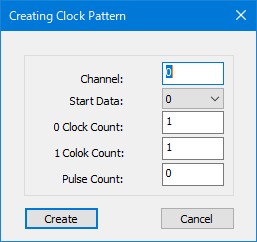
Create a basic data pattern as data for the specified channel.
In the settings dialog, set the following items to generate a waveform.
・Channel
・Start Data 0 or 1
・0 Clock Count
・1 Clock Count
・Pulse Count(If 0 is specified, the specified pattern will be generated up to the final data.)
[How to display the dialog]
Route |
Operation |
Menu |
"Tools(T)"-"Creating Data Pattern"-"Clock Data Pattern" |
Toolbar |
|
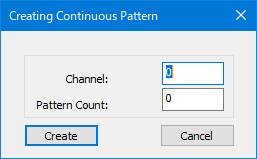
In the settings dialog, set the following items to generate a waveform.
To use this function, select the basic data pattern in advance.
・Channel
・Pattern Count(If 0 is specified, the specified pattern will be generated up to the final data.)
[How to display the dialog]
Route |
Operation |
Menu |
"Tools(T)"-"Creating Data Pattern"-"Continuous Data Pattern" |
Toolbar |
|
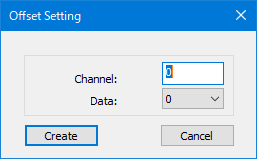
In the settings dialog, set the following items to set the offset.
・Channel
・Data 0 or 1
[How to display the dialog]
Route |
Operation |
Menu |
"Tools(T)"-"Creating Data Pattern"-"Offset" |
Toolbar |
|
One cycle of the generated data pattern is automatically stored in the work graph. (Maximum 5)
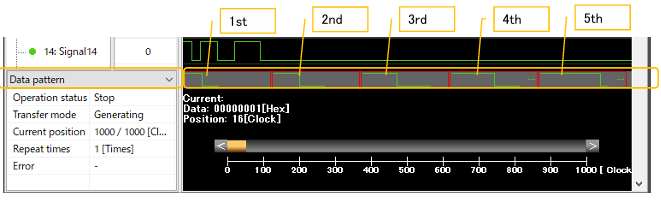
If a new data pattern is created with the maximum number of data patterns stored, the first data pattern is discarded and stored as the fifth data pattern.
If the data pattern is too long to display completely, a detail button (...) will appear on the right.
Click the Details button to view the complete data pattern.
In addition, you can right-click on one data pattern to delete it.

