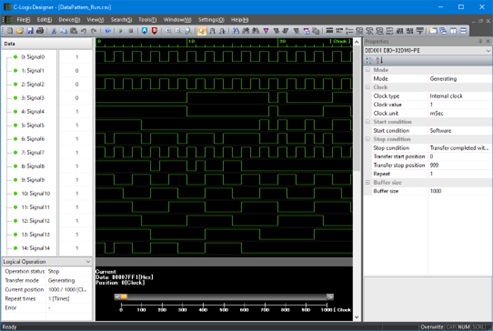
Screen when the magnification is doubled
You can change the magnification of the graph window display.
Select "View(V)"-"Scale"-"Zoom In" from the menu, or click the "Zoom in" button from the toolbar to enlarge the display magnification to the current 2x.
Screen when the magnification is doubled
Select "View(V)"-"Scale"-"Zoom Out" from the menu, or click the "Zoom out" button from the toolbar to reduce the display magnification to 1/2 of the current value.
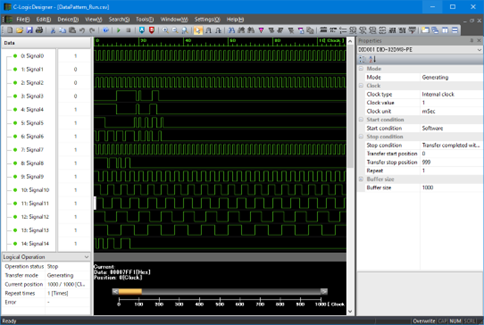
Screen when the magnification is halved
Select "View(V)"-"Scale"-"Default Scale" from the menu, or click the "Restore default scale" button from the toolbar to return the display magnification to the default value.
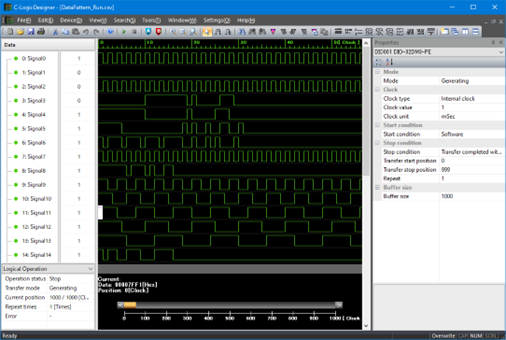
Screen when returning to the default magnification
If you select "View(V)"-"Scale"-"Any Scale..." from the menu, a dialog for specifying the display magnification will be displayed.
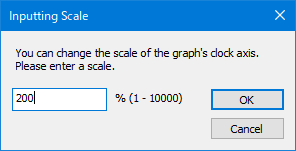
Magnification input window
An integer of 1-10000 (%) can be entered as the enlargement ratio.
Enter the magnification and click the "OK" button to redraw the graph window at the specified magnification.
You can also use the following shortcuts to change the magnification.
Key assignment |
Function |
[Alt + Home] |
Restores the default magnification |
[Alt + Right] |
Magnify double |
[Alt + Left] |
Reduce to 1/2 |