) to perform a full-text search in the help file
and display a list of target topics.
) to perform a full-text search in the help file
and display a list of target topics.Specify a word or phrase in the search area and press the search icon
() to perform a full-text search in the help file
and display a list of target topics.
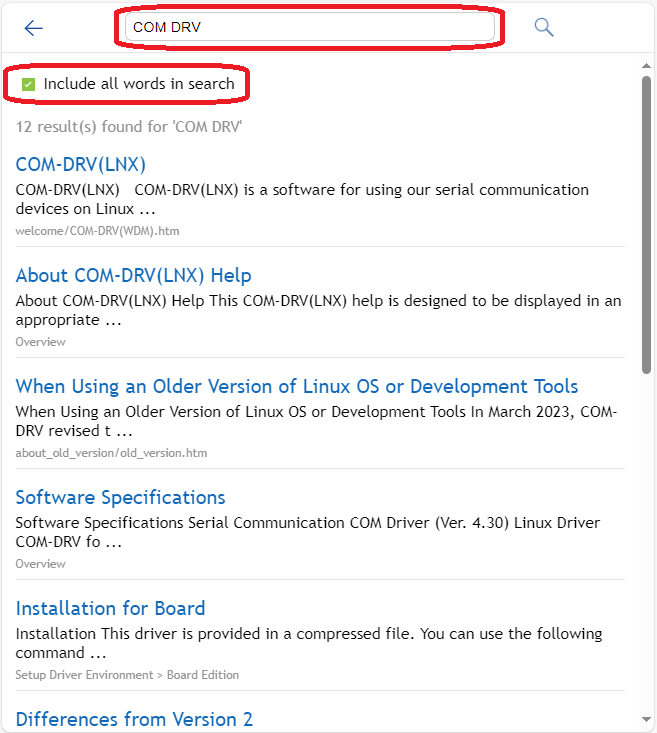
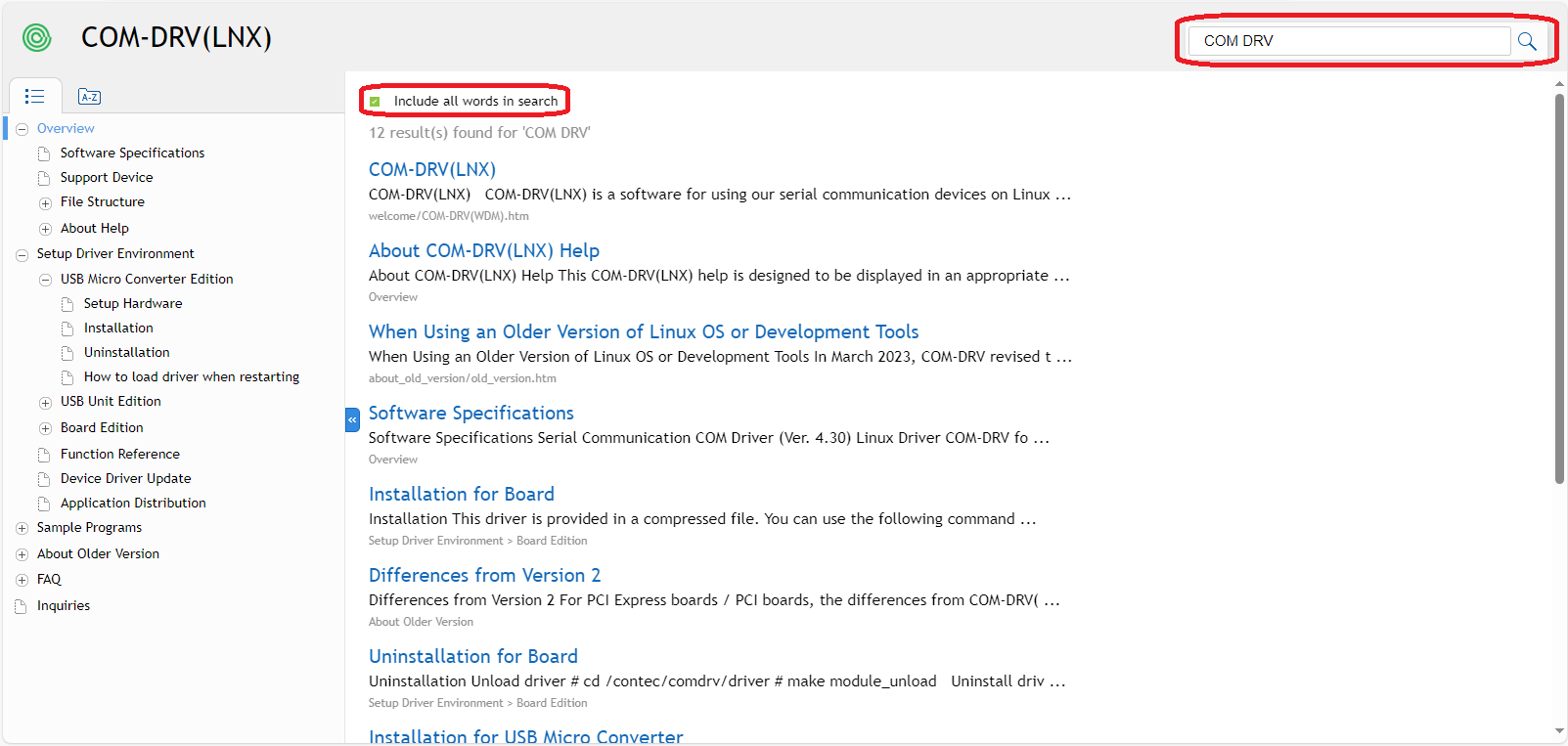
To Search
Specify a word or phrase in the search area and press
the search icon () to display the search results.
Search results also show the sentences before and
after the specified word or phrase.
It also shows the nesting of topic items. Therefore, there is no need
to jump to all the topics found and check all the contents.
Before jumping to the searched topic, you can judge whether it is the
desired topic by looking at the sentences before and after displayed
in the search results and the nesting information of the topic item.
In the search area, multiple words or phrases separated
by half-width space can be specified.
By default, AND search for topics that contain all words ("Include
all words in search").
For OR search, uncheck ("Include all words in search") and
click the search icon ().
If you enter half-width alphanumeric characters in
the search area, a list of search candidates will be displayed.
If you enter full-width characters in the search area, the list of
search candidates will not be displayed, but if you continue to enter
a half-width space, the list of search candidates will be displayed.
If a list of suitable search suggestions is displayed, you can prevent
mistyping words and phrases by selecting from the list.
To return to the search results after jumping to one
topic from the search results and checking the contents of the topic,
it is recommended to use the browser's [Back] button.
The process of searching all again can be omitted.
When scrolling down the search results page, the search
process continues and additional search results are displayed each
time you scroll the page.
The full-text search is complete when the message [End of search results]
is displayed.
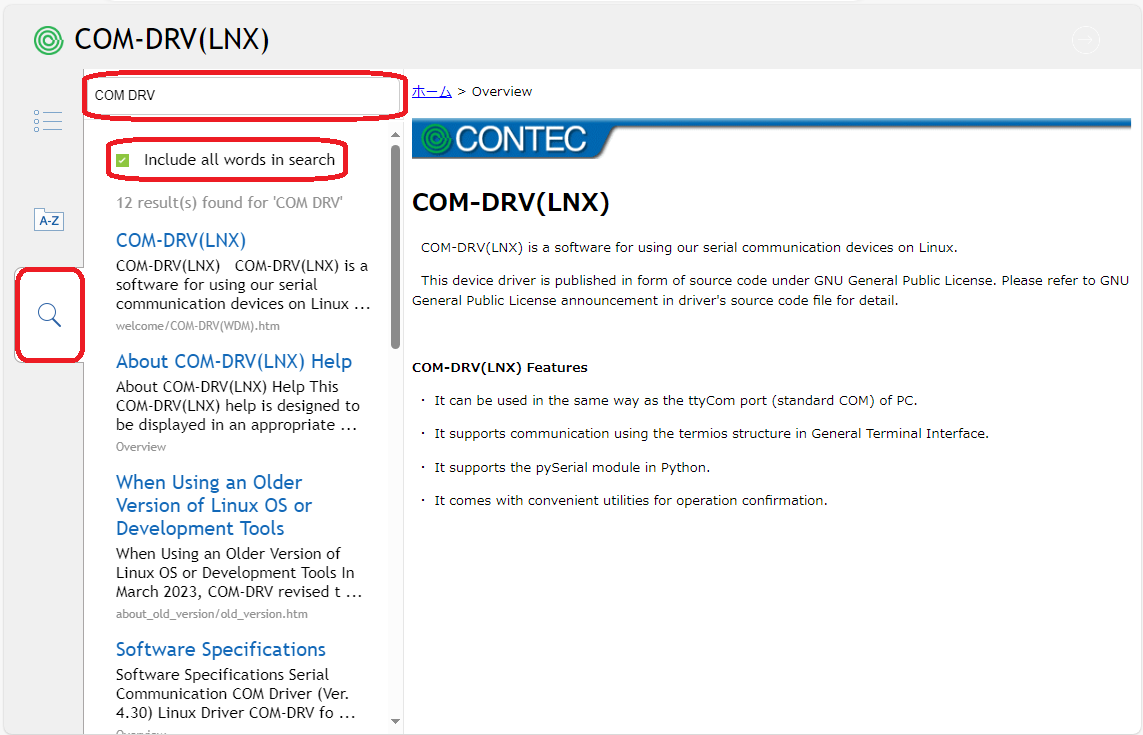
The search area is already displayed on the Desktop PC Layout and Tablet PC Layout.
In the Mobile Layout, if the search
area is not visible, click the menu  icon to
display the search area and perform
a full-text search.
icon to
display the search area and perform
a full-text search.
Mobile Layout (Without search area)