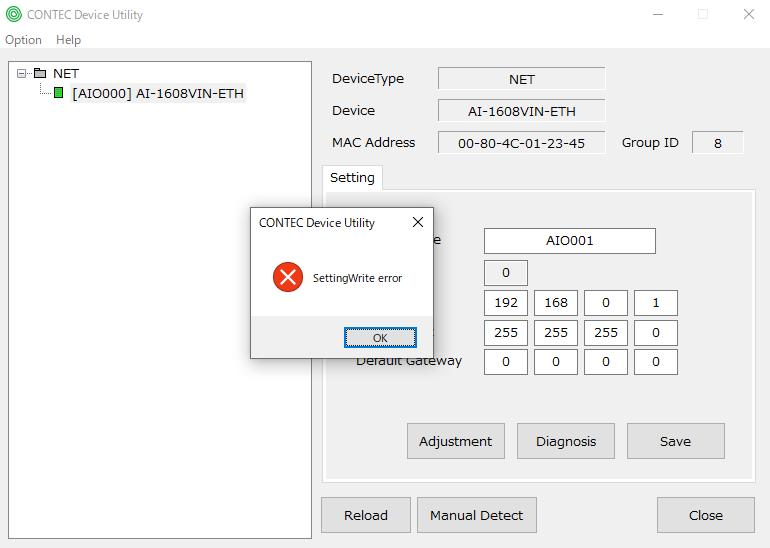
When you configure settings in CONTEC Device Utility and click the [Save] button, the message "SettingWrite error" may be displayed.
This message indicates that the process of writing configuration data
to the target device via Ethernet communication did not complete successfully.
Even if the target device is detected by CONTEC Device Utility, unstable
Ethernet communication caused by the network configuration or connection
environment may prevent the settings from being written successfully.
Please try the following:
1. Rediscover the Device
Click the [Reload] button in CONTEC Device
Utility to rediscover the device.
If the device cannot be detected correctly, check the LAN cable connection
and network configuration.
Verify that the LINK/ACT LEDs on both the PC and the target device are
lit or blinking.
2. Test with a Simple Network Configuration
Connect the PC and the target device in a
simple one-to-one network configuration and check whether the settings
can be written successfully.
If a LAN adapter or expansion LAN board is being used, connect the device
directly to the PC's built-in LAN port.
If multiple network adapters or LAN ports are enabled, temporarily disable
unnecessary network connections and try again.
3. Test Using Another PC
Check whether the settings can be written
successfully from a different PC.
If the same error occurs on another PC, use the network diagnostic tools
included with Windows to verify that Ethernet communication is functioning
correctly.
4. Verify Communication Using the Ping Command
Connect the PC and the target device directly
with a LAN cable and use the Windows ping command to check communication.
If the target device does not respond to ping requests, review the network
configuration.
First, try replacing the LAN cable and test again.
If the problem persists after performing the above steps, please contact the CONTEC Technical Support Center (TSC).